> ## Documentation Index
> Fetch the complete documentation index at: https://www.posted.cc/llms.txt
> Use this file to discover all available pages before exploring further.
# Facebook Pages
> Connect your Facebook Pages and publish text, photos, videos and link previews.
Connect Facebook Pages to your team and publish text, photos, videos and link previews. Choose which Pages to connect after signing in. Each Page has its own preview, schedule and delivery status.
Facebook personal profiles cannot publish through this API. Meta removed the permission for apps to post as a person; connect a Page you manage instead. See [Meta’s publishing permission update](https://developers.facebook.com/blog/post/2018/07/31/platform-update-publish-permission/).
## Connect your Pages
Set up your Meta app using the guide below, then add the required
environment variables to your Posted installation.
A team administrator opens **Connections → Add connection**, selects
**Facebook Pages** and signs in with a Facebook account that manages the
Pages.
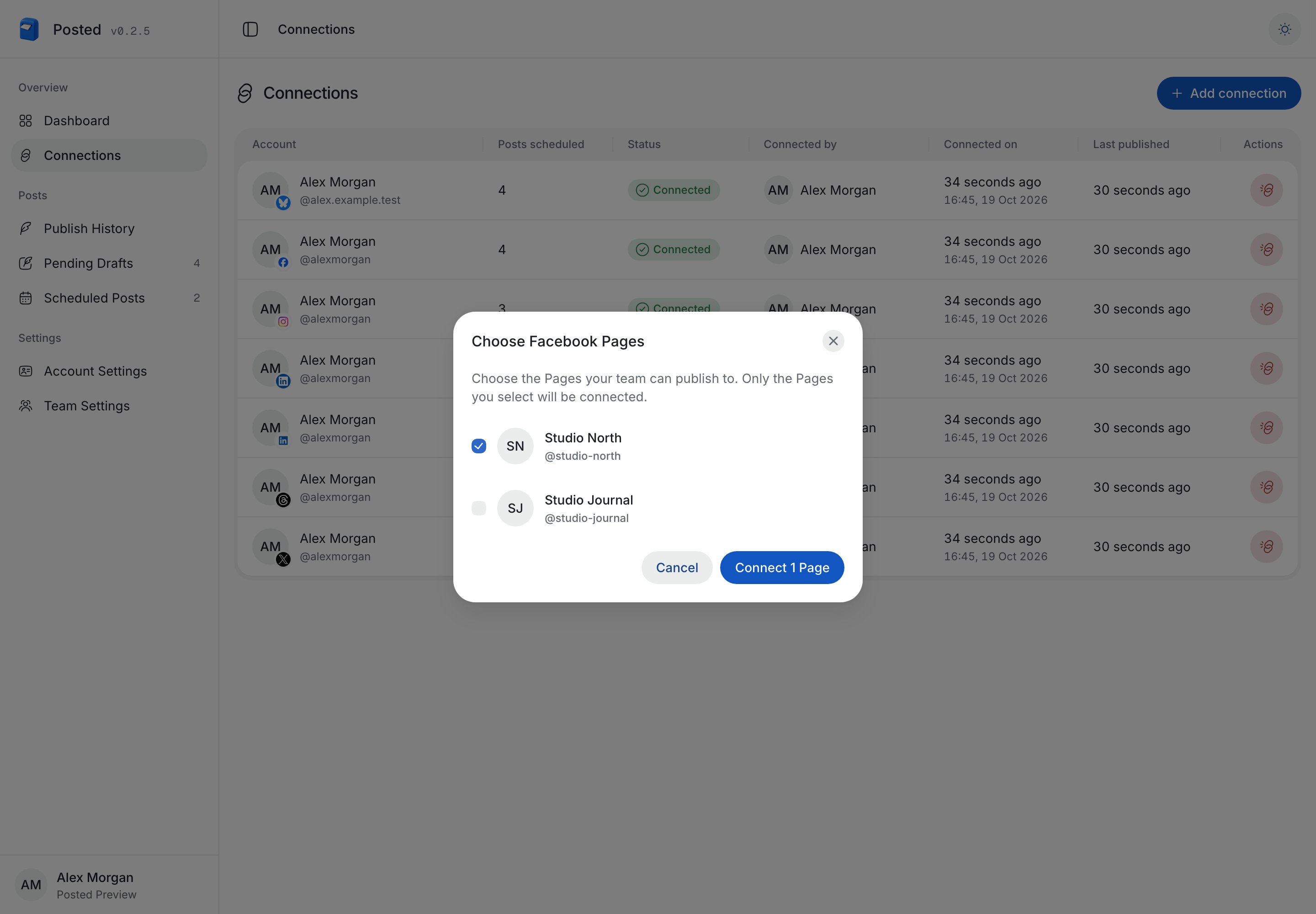
Allow Page access in Facebook. Back in Posted, select the Pages your team
should publish to and click **Connect Pages**. Cancel leaves your
connections unchanged.
Select the connected Pages in **Choose Accounts**. Review each preview, then
publish or schedule your post.
Select only the Pages your team should use. Each chosen Page becomes a team connection; the example below selects one of two available Pages.
 ## Required environment variables
Add your Meta app ID and secret to the API and worker, then restart both services.
```dotenv theme={"system"}
POSTED_FACEBOOK_CLIENT_ID=YOUR_META_APP_ID
POSTED_FACEBOOK_CLIENT_SECRET=YOUR_META_APP_SECRET
```
If you use a Facebook Login for Business configuration, choose **User access token** and add its configuration ID to both services. A system-user token configuration uses a different connection flow and is not supported here.
```dotenv theme={"system"}
POSTED_FACEBOOK_CONFIG_ID=YOUR_USER_TOKEN_CONFIGURATION_ID
```
## Set up your Meta app
Open [Meta for Developers](https://developers.facebook.com/apps/). You can add Page management to an existing app, including an app used for Threads, when Meta offers the use case. Otherwise, create a separate app.
Open **Use cases → Add use cases**, select **Manage everything on your Page** and click **Save**.
## Required environment variables
Add your Meta app ID and secret to the API and worker, then restart both services.
```dotenv theme={"system"}
POSTED_FACEBOOK_CLIENT_ID=YOUR_META_APP_ID
POSTED_FACEBOOK_CLIENT_SECRET=YOUR_META_APP_SECRET
```
If you use a Facebook Login for Business configuration, choose **User access token** and add its configuration ID to both services. A system-user token configuration uses a different connection flow and is not supported here.
```dotenv theme={"system"}
POSTED_FACEBOOK_CONFIG_ID=YOUR_USER_TOKEN_CONFIGURATION_ID
```
## Set up your Meta app
Open [Meta for Developers](https://developers.facebook.com/apps/). You can add Page management to an existing app, including an app used for Threads, when Meta offers the use case. Otherwise, create a separate app.
Open **Use cases → Add use cases**, select **Manage everything on your Page** and click **Save**.
 Meta may show a reminder about the requirements for this use case. Click **Add to app** to continue.
 Back in **Use cases**, click **Customize** beside **Manage everything on your Page**.
 In **Permissions and features**, add `pages_show_list`, `pages_read_engagement`, `pages_manage_posts` if they are not already present. **Ready for testing** means you can test with eligible app-role accounts. Select additional permissions based on the scope of your Posted use.
 Open **Facebook Login for Business → Settings**. Enable **Client OAuth login** and **Web OAuth login**, then add the URLs below and save. Replace `{{POSTED_API_URL}}` with your Posted API origin, including `https://`.
```text title="Valid OAuth Redirect URIs" theme={"system"}
{{POSTED_API_URL}}/api/social/callback/facebook-pages
```
```text title="Deauthorize callback URL" theme={"system"}
{{POSTED_API_URL}}/api/social/facebook/deauthorize
```
```text title="Data Deletion Request URL" theme={"system"}
{{POSTED_API_URL}}/api/social/facebook/data-deletion
```
Open **Facebook Login for Business → Settings**. Enable **Client OAuth login** and **Web OAuth login**, then add the URLs below and save. Replace `{{POSTED_API_URL}}` with your Posted API origin, including `https://`.
```text title="Valid OAuth Redirect URIs" theme={"system"}
{{POSTED_API_URL}}/api/social/callback/facebook-pages
```
```text title="Deauthorize callback URL" theme={"system"}
{{POSTED_API_URL}}/api/social/facebook/deauthorize
```
```text title="Data Deletion Request URL" theme={"system"}
{{POSTED_API_URL}}/api/social/facebook/data-deletion
```
 Copy the regular **App ID** and **App Secret** from **App settings → Basic** into the environment variables above. If the same Meta app also uses Threads, keep using the separate **Threads app ID** and **Threads app secret** for that provider.
If you create a Facebook Login for Business configuration, select **User access token** and save its ID as `POSTED_FACEBOOK_CONFIG_ID`.
Complete the app's basic details, privacy policy and contact information. During development, test with an account that has an app role and permission to create content on the Page. Complete the App Review, business verification and access requirements shown in your Meta dashboard before connecting accounts outside your app roles.
Only Pages where the signed-in account can create content appear in Posted. If a Page is missing, check the permissions allowed during login and the account’s Page access, then start a new connection.
## What you can publish
Posted supports up to 3,000 characters, ten photos or one video per Page post. Videos can be up to 30 minutes within Posted’s upload limit. A GIF is converted to a video before publishing. Link-only posts include a Facebook link preview; Facebook controls the final appearance.
A sequence publishes as separate Page posts in order. Facebook Pages does not create a reply thread. See [Publishing across accounts](/publishing-across-accounts) for shared media behavior, reconnecting and troubleshooting.
Posted uses Graph API `v26.0`. See Meta’s [Page app setup](https://developers.facebook.com/documentation/pages-api/create-an-app), [Page publishing](https://developers.facebook.com/documentation/pages-api/posts) and [video publishing](https://developers.facebook.com/documentation/video-api/guides/publishing) guides for provider requirements.
This documentation is built and hosted on [Mintlify](https://mintlify.com), a developer documentation platform.
Copy the regular **App ID** and **App Secret** from **App settings → Basic** into the environment variables above. If the same Meta app also uses Threads, keep using the separate **Threads app ID** and **Threads app secret** for that provider.
If you create a Facebook Login for Business configuration, select **User access token** and save its ID as `POSTED_FACEBOOK_CONFIG_ID`.
Complete the app's basic details, privacy policy and contact information. During development, test with an account that has an app role and permission to create content on the Page. Complete the App Review, business verification and access requirements shown in your Meta dashboard before connecting accounts outside your app roles.
Only Pages where the signed-in account can create content appear in Posted. If a Page is missing, check the permissions allowed during login and the account’s Page access, then start a new connection.
## What you can publish
Posted supports up to 3,000 characters, ten photos or one video per Page post. Videos can be up to 30 minutes within Posted’s upload limit. A GIF is converted to a video before publishing. Link-only posts include a Facebook link preview; Facebook controls the final appearance.
A sequence publishes as separate Page posts in order. Facebook Pages does not create a reply thread. See [Publishing across accounts](/publishing-across-accounts) for shared media behavior, reconnecting and troubleshooting.
Posted uses Graph API `v26.0`. See Meta’s [Page app setup](https://developers.facebook.com/documentation/pages-api/create-an-app), [Page publishing](https://developers.facebook.com/documentation/pages-api/posts) and [video publishing](https://developers.facebook.com/documentation/video-api/guides/publishing) guides for provider requirements.
This documentation is built and hosted on [Mintlify](https://mintlify.com), a developer documentation platform.