Connect company Pages through a separate LinkedIn application with Community Management API access.
Connect company Pages to your team and publish text, images, GIFs, videos and link previews. Each selected Page becomes a separate connection. A sequence publishes as individual Page posts in order.Use a separate LinkedIn application with approved Community Management API access. Keep the LinkedIn member account application for personal profiles.
Add the required environment variables below to your Posted installation.
2
Sign in to LinkedIn
A team administrator opens Connections → Add connection, chooses
LinkedIn Pages, and signs in as a LinkedIn Page administrator.
3
Choose Pages
After LinkedIn returns you to Posted, select the Pages to connect and click
Connect Pages. Posted saves only your selection. Cancel leaves the
connections unchanged.
4
Compose a post
Select the connected Pages in Choose Accounts, review their previews and
publish or schedule your post.
Open the LinkedIn Developer Portal. Create a new application associated with your company Page, including your privacy policy and logo. Request Community Management API access before adding other API products.
1
Verify the new application
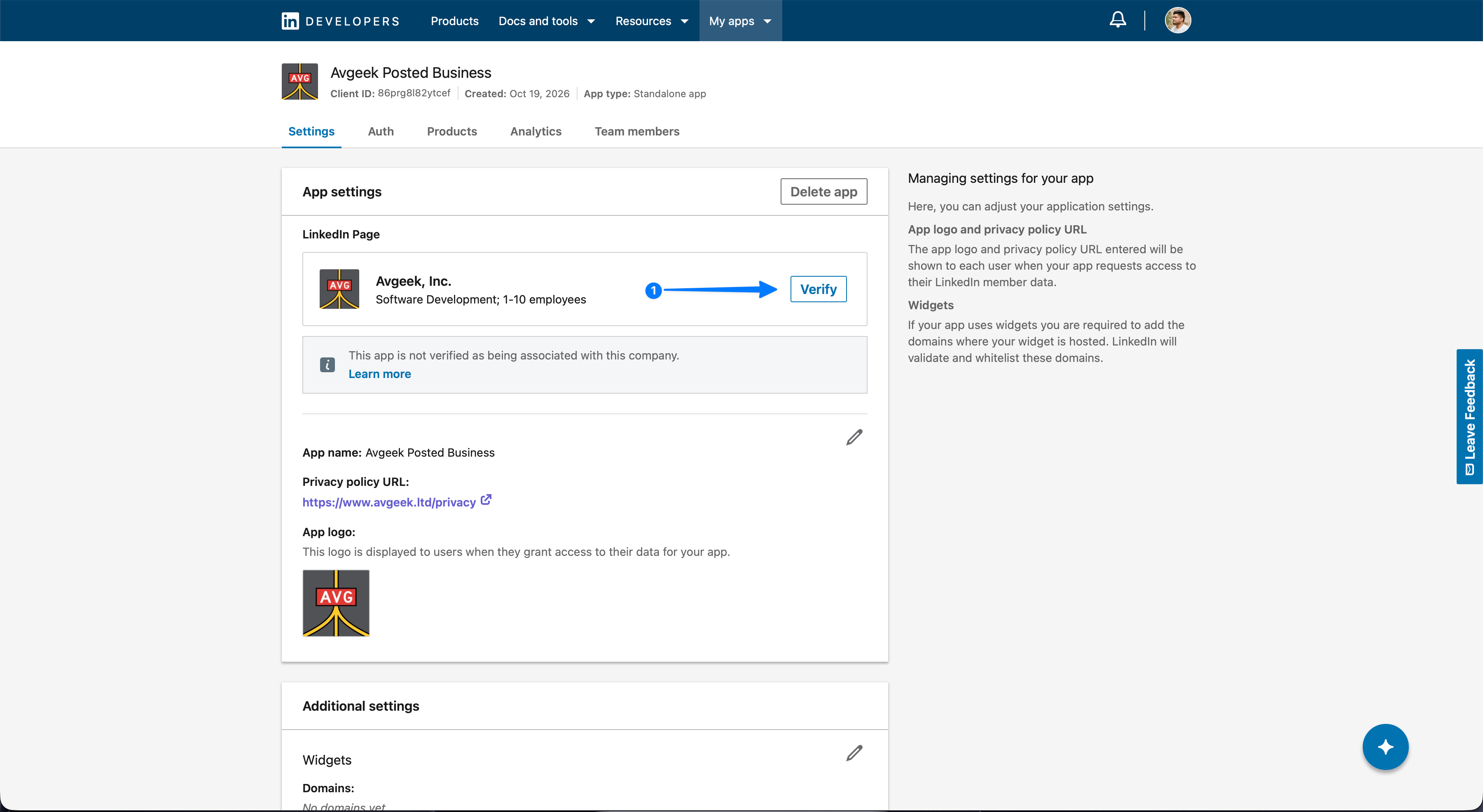
Create a separate application for LinkedIn Pages and associate it with your company Page. Open Settings and click Verify (arrow 1). Copy the verification URL and have a Page super admin open it.
Verify the new application.
2
Approve the Page association
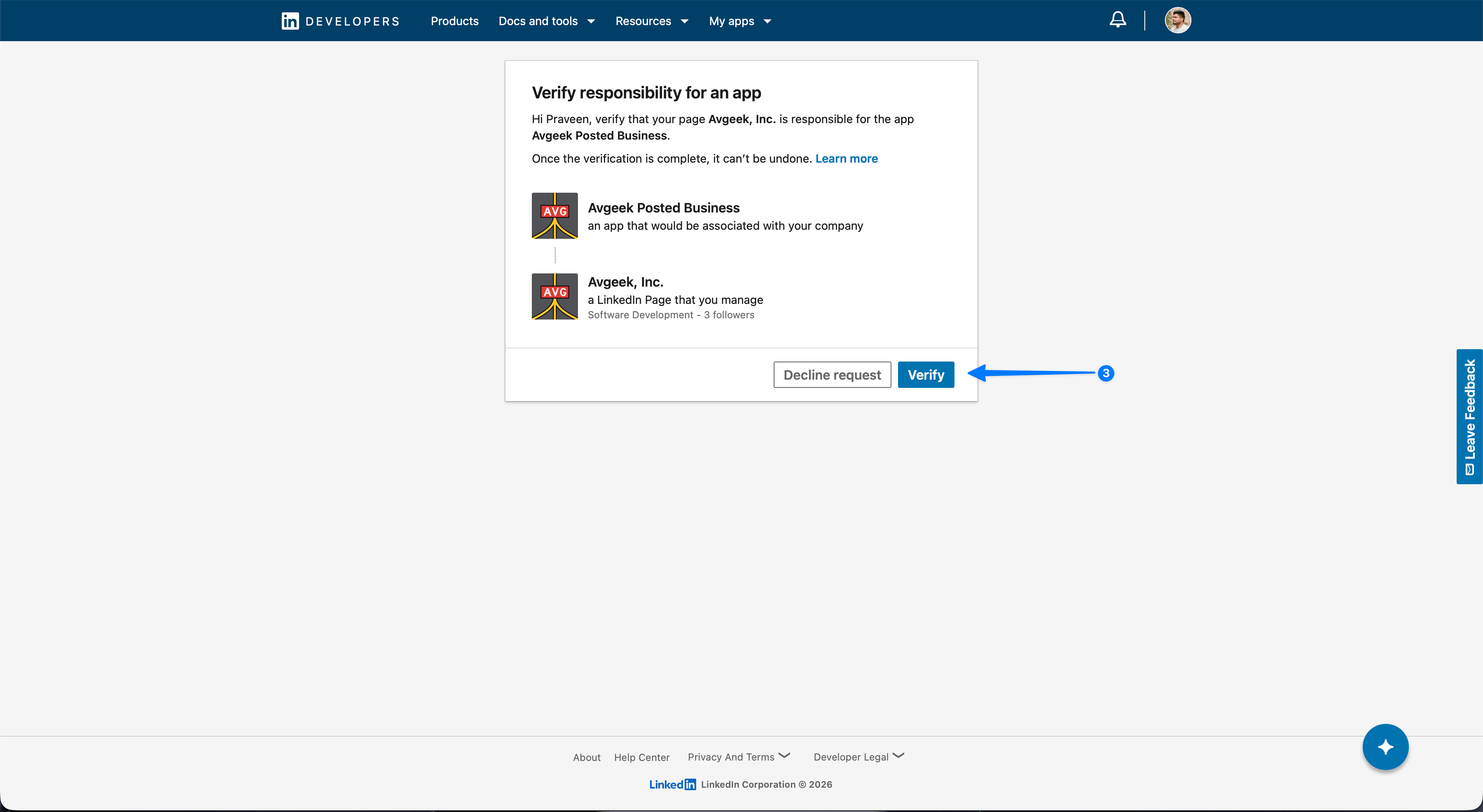
The Page super admin checks the app and Page details, then clicks Verify (arrow 3).
Approve the Page association.
3
Check verification
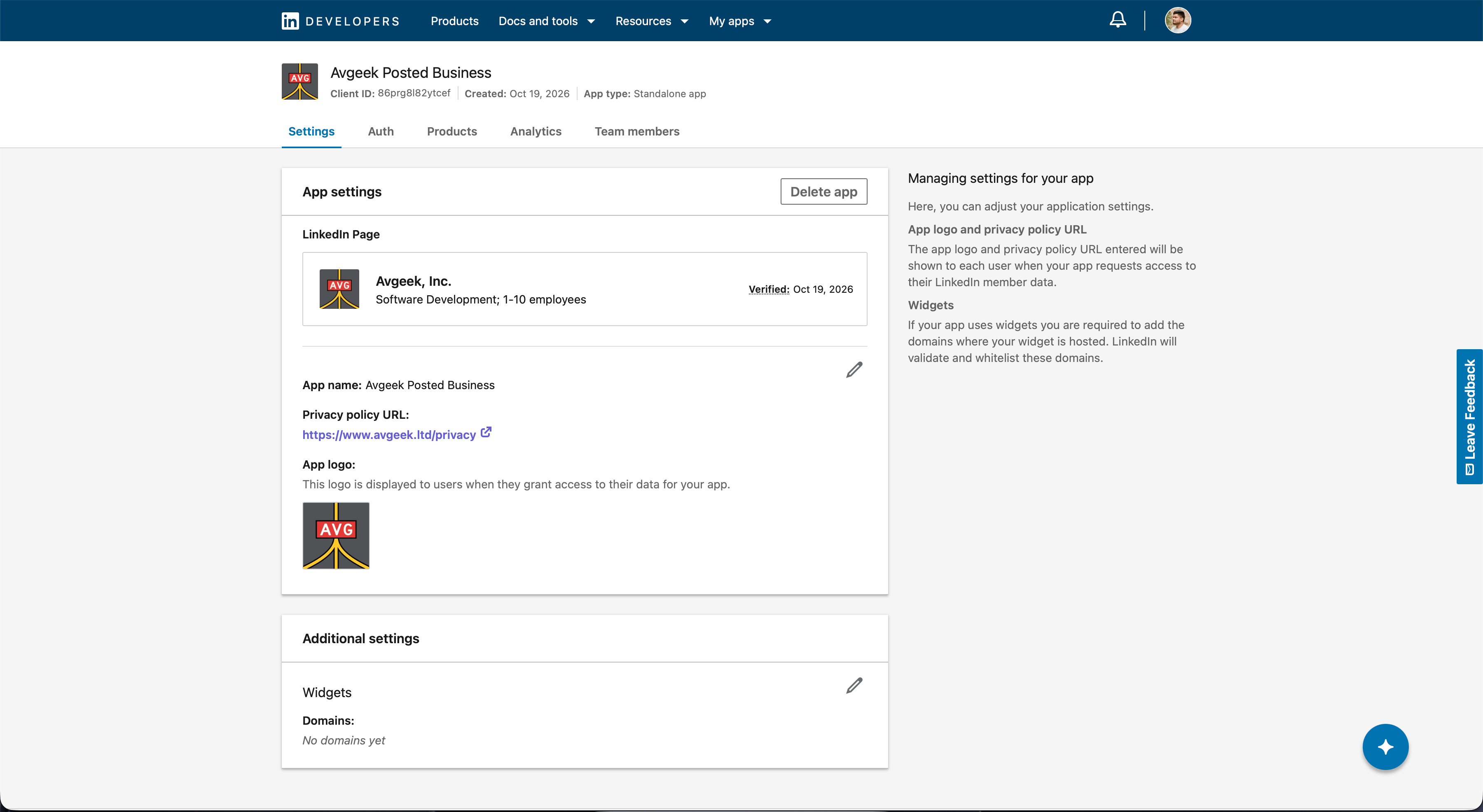
Return to the application settings. The Page should now show Verified.
Check verification.
4
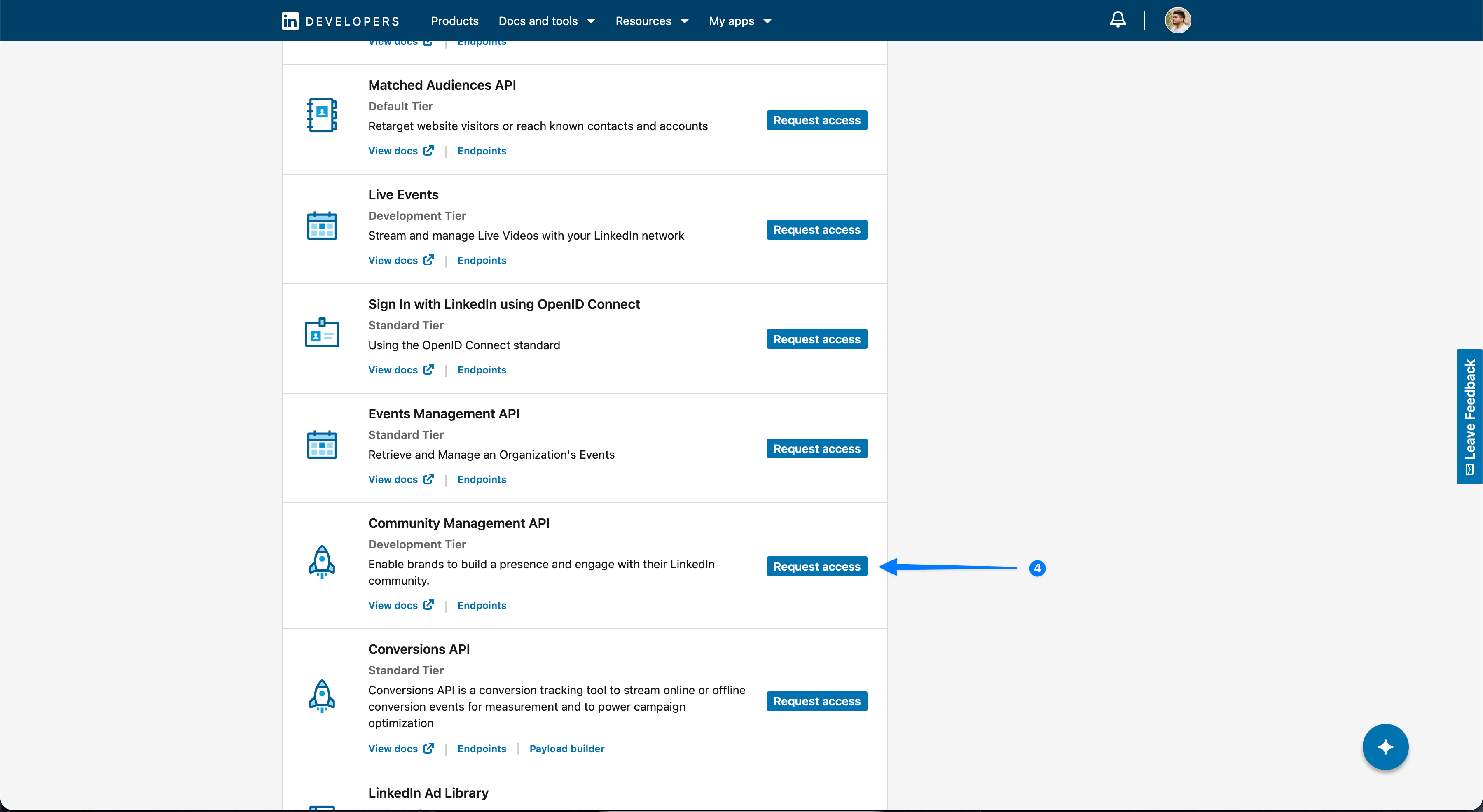
Request Community Management API access
Open Products, find Community Management API, and click Request access (arrow 4). Keep this application separate from the app used for personal LinkedIn connections.
Request Community Management API access.
5
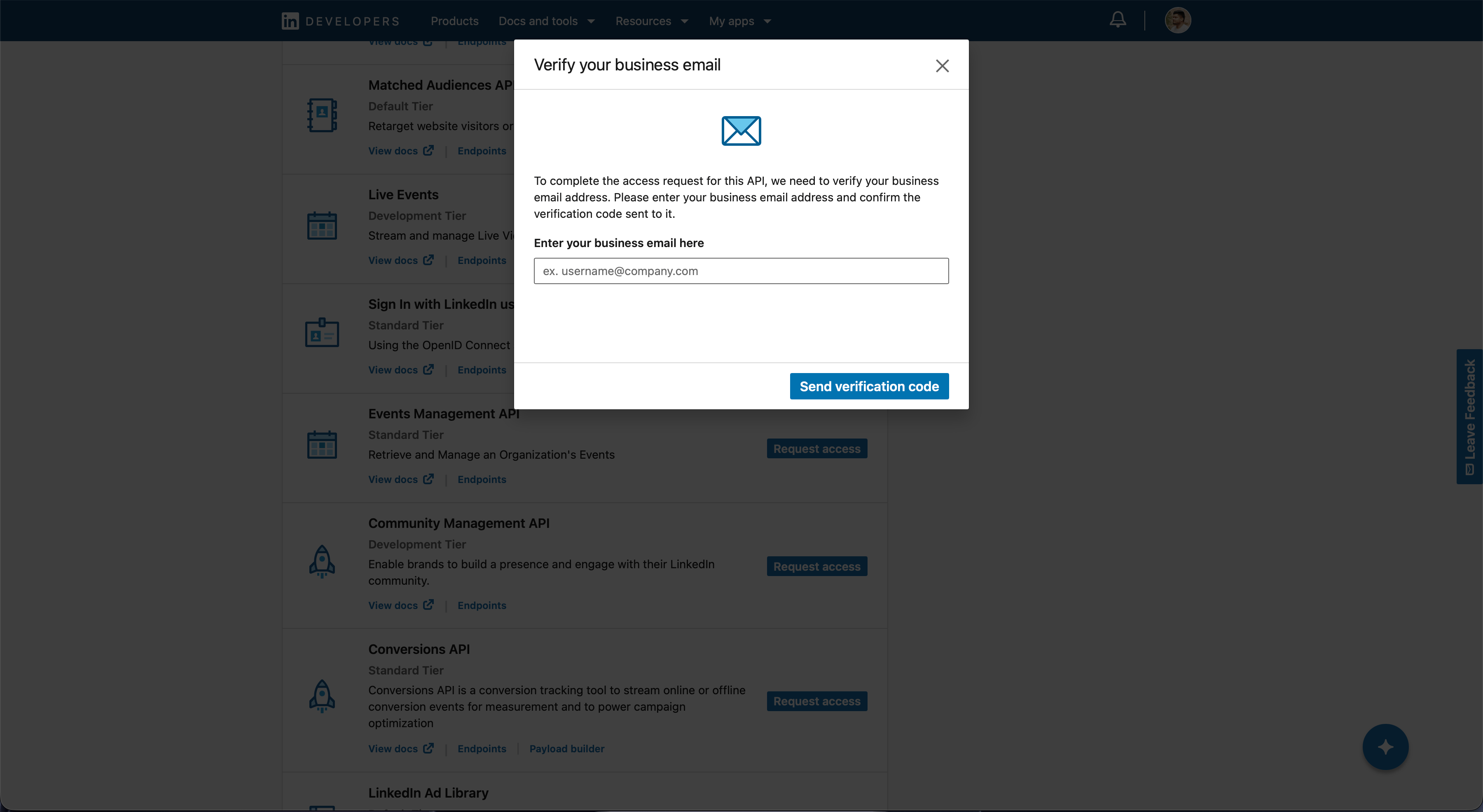
Verify your business email
Enter your business email address and complete the verification code LinkedIn sends you.
Verify your business email.
6
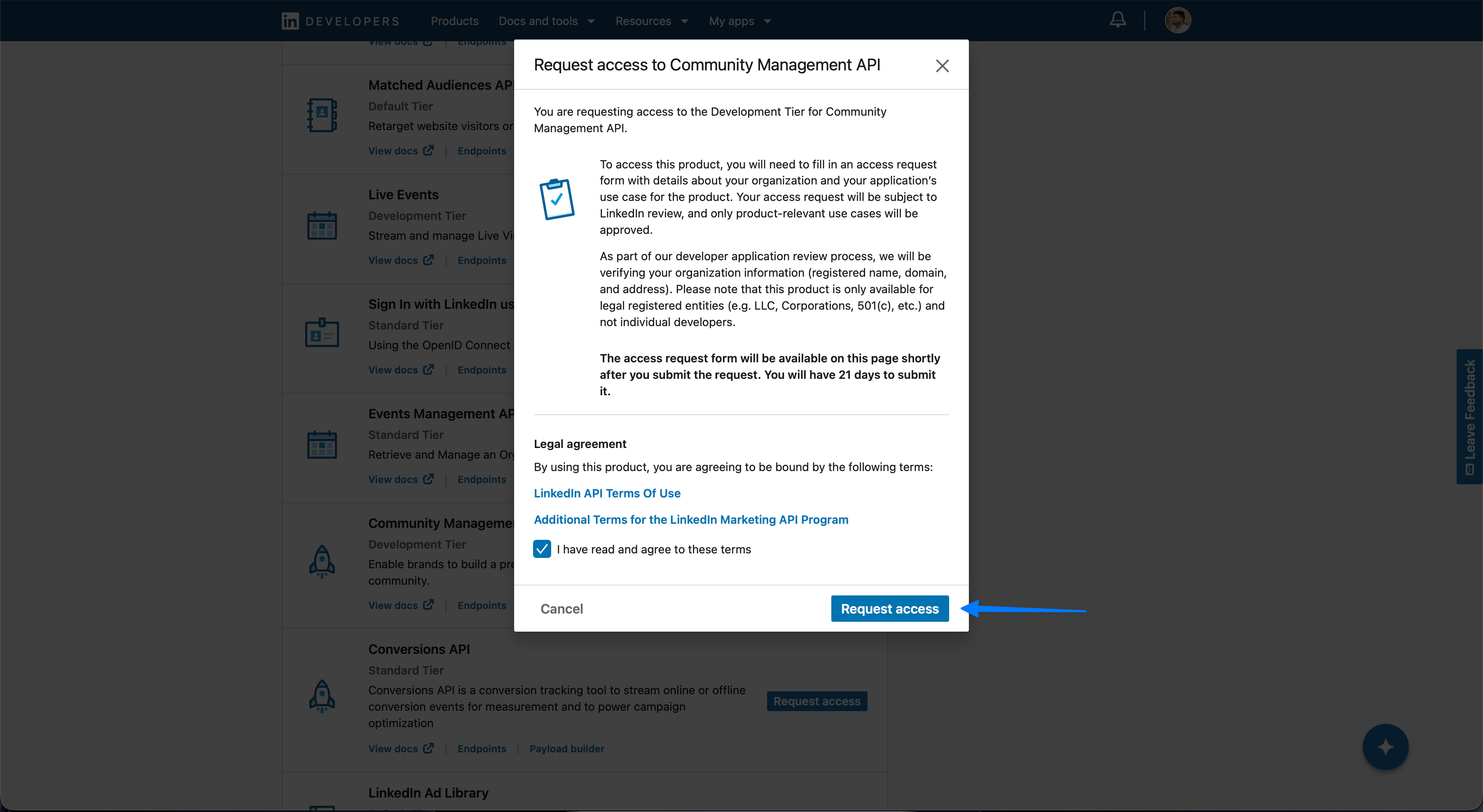
Submit the access request
Read the terms. If you accept them, select the agreement checkbox and click Request access.
Submit the access request.
7
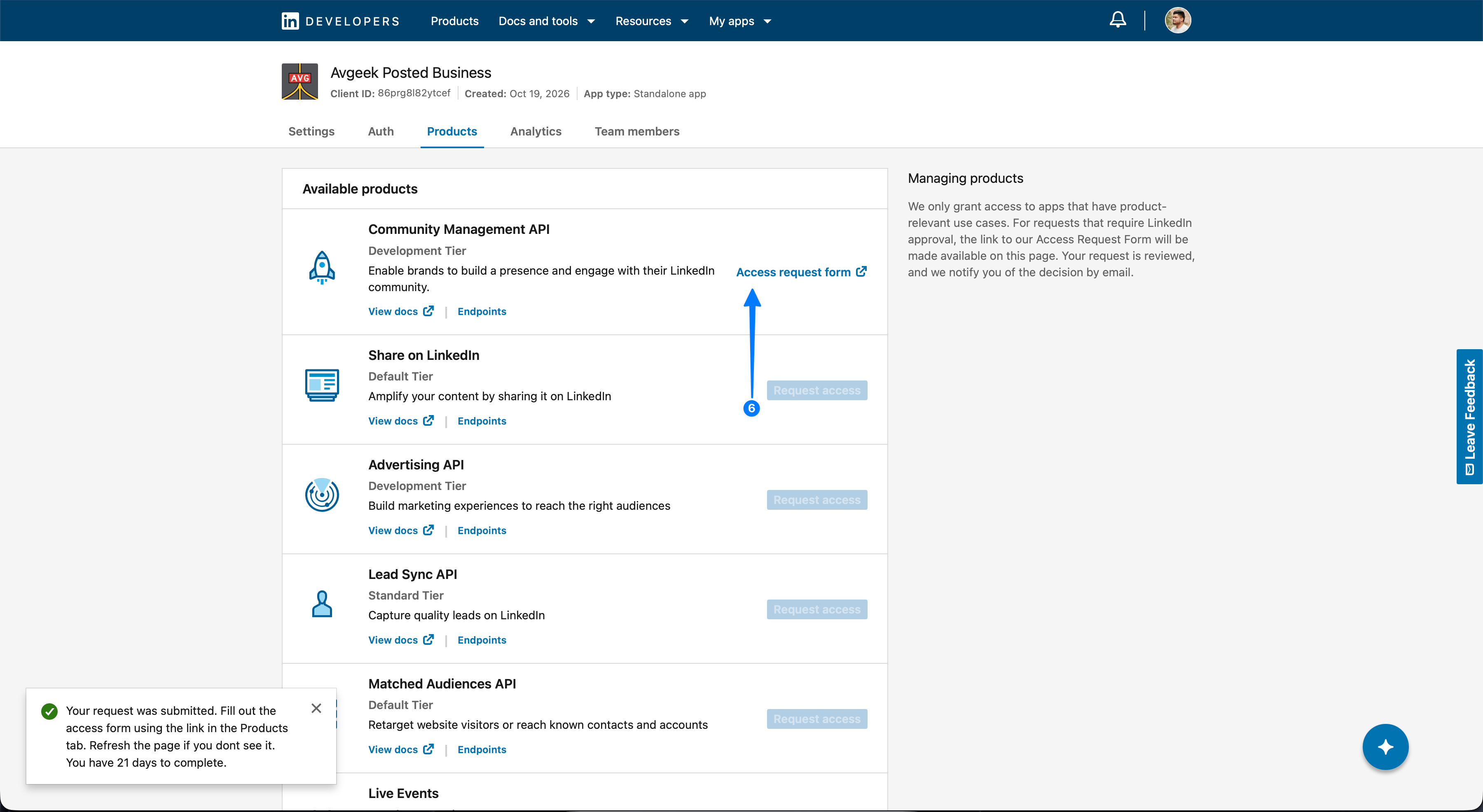
Open the access request form
Back in Products, click Access request form (arrow 6). Requesting the product alone does not complete the application.
Open the access request form.
8
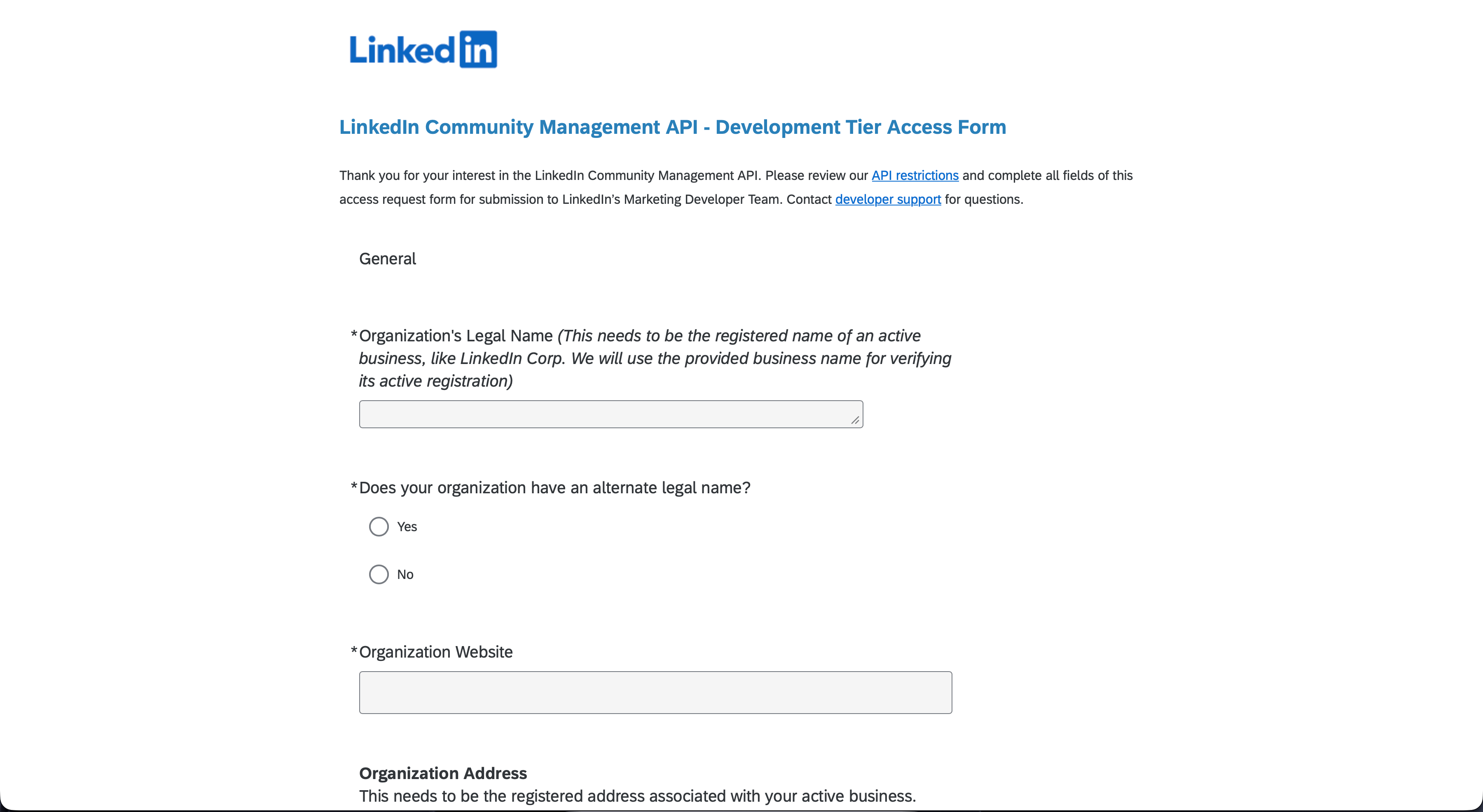
Enter organization details
Complete the form with your organization’s registered name, website and business details.
Enter organization details.
9
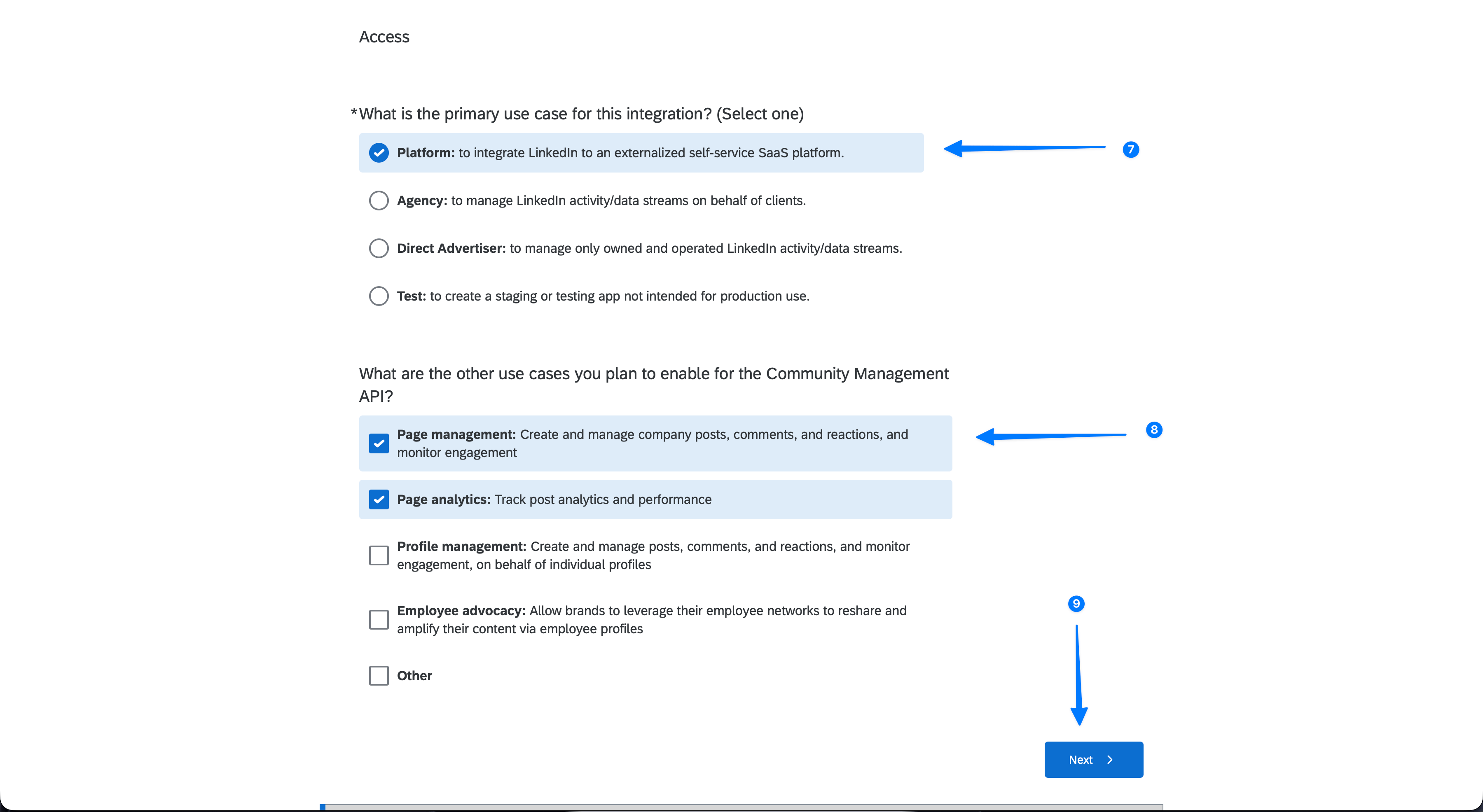
Describe your use cases
Select the primary use case and features that match the scope of your Posted use, then continue with Next (arrows 7–9). Describe currently available features accurately; future features can be identified as planned.
Describe your use cases.
10
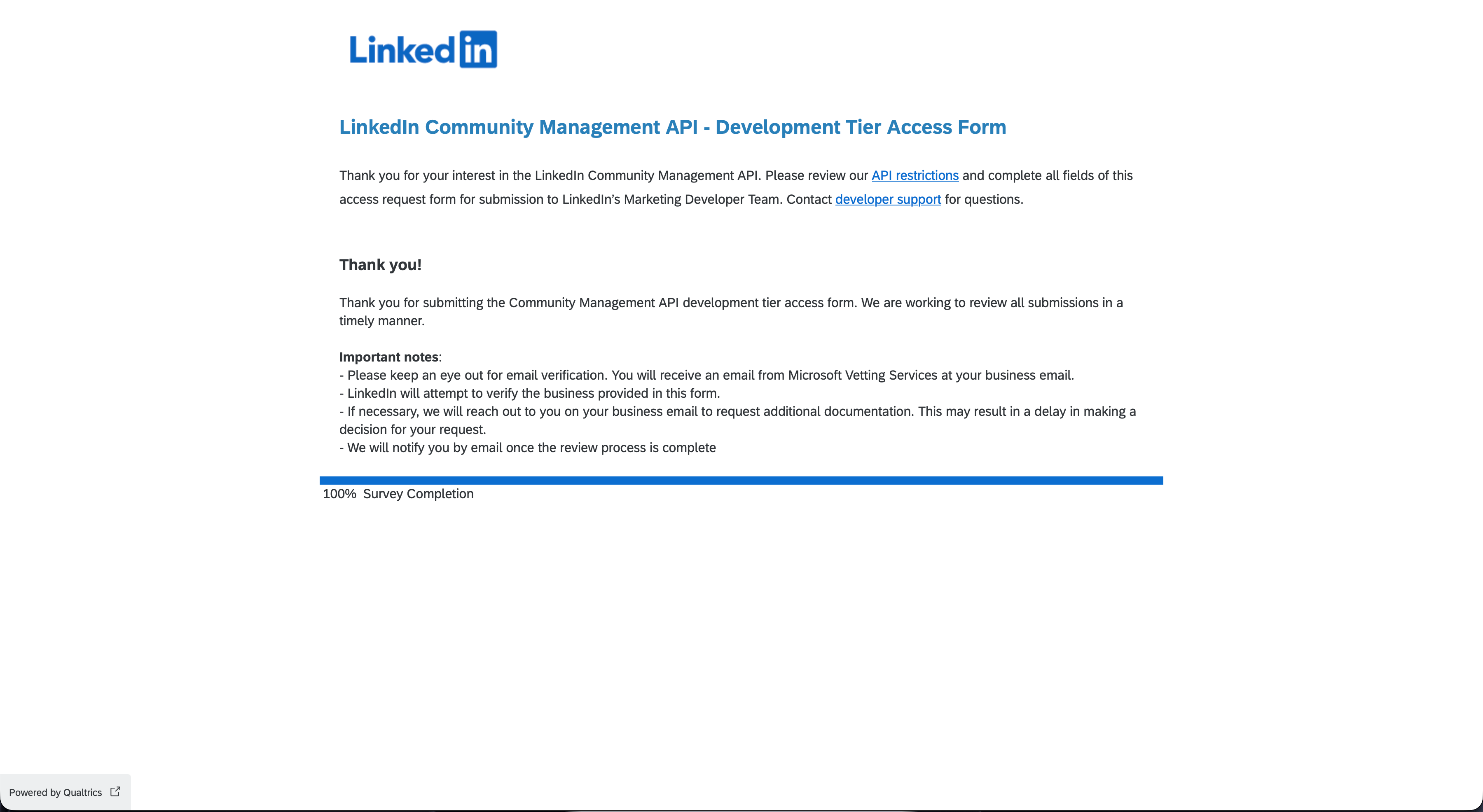
Wait for LinkedIn review
Submit the completed form. Watch your business email for verification requests, follow-up questions and the approval decision. The confirmation below means the form was submitted; it does not mean API access is approved.
Posted requests rw_organization_admin, w_organization_social to discover Pages you manage and publish on their behalf. Pages with approved administrator or content administrator access appear in the chooser. Reconnect through LinkedIn Pages to renew access; existing Page connections keep their identity.The Pages app does not need the OpenID Connect or Share on LinkedIn products used by personal-profile connections. Posted uses LinkedIn API version 202609.See Publishing across accounts for media, sequences, reconnecting and troubleshooting. LinkedIn controls application approval and access tiers; see its Community Management API guidance.